

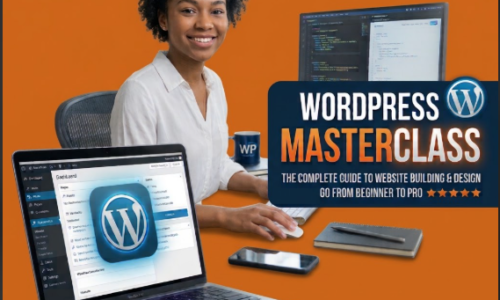
WordPress Masterclass Course Table of Contents
- Module 1: Introduction & Foundations
- Module 2: Setting Up Your Hosting and Domain
- Module 3: Navigating the WordPress Dashboard
- Module 4: Mastering Content (Posts vs. Pages & The Block Editor)
- Module 5: Customization, Themes, and Full Site Editing
- Module 6: Supercharging Your Site with Plugins
- Module 7: Essential Settings & SEO Basics
- Module 8: Security, Backups, and Maintenance
Module 1: Introduction & Foundations What is WordPress? WordPress is a Content Management System (CMS) written in PHP that uses a MySQL database. In plain English, it is software that allows you to build and manage a website without writing code from scratch. Powering over 40% of all websites on the internet, it ranges from simple blogs to massive e-commerce stores. WordPress.com vs. WordPress.org One of the most common points of confusion for beginners is choosing the right flavor:
- WordPress.org (Self-Hosted): This is the free, open-source software you download and install on your own web hosting server. This is what professionals use. It gives you 100% control over your data, design, monetization, and plugins. (This course focuses entirely on WordPress.org).
- WordPress.com: A for-profit, hosted platform built by co-creator Matt Mullenweg’s company (Automattic). It is easier to start for free, but it heavily restricts monetization, plugins, and custom themes unless you pay for expensive enterprise tiers.
Module 2: Setting Up Your Hosting and Domain To launch a self-hosted WordPress.org site, you need two things:
- A Domain Name: Your website’s address on the internet (e.g., myawesome-site.com).
- Web Hosting: The computer server where your website’s files and database live 24/7.
Step-by-Step Setup:
- Choose a Hosting Provider: Look for beginner-friendly hosts that offer “1-click WordPress installation” (popular options include Bluehost, SiteGround, Hostinger, or DreamHost).
- Purchase Domain & Hosting: Sign up for a plan. Many hosting providers give you a free domain name for the first year.
- Install WordPress: Log into your hosting control panel (like cPanel or hPanel), locate the Auto-Installer / WordPress Installer, and click it.
- Provide your site title, admin username, admin password, and admin email. Click Install.
- Once completed, you can access your backend login screen by navigating to [yourdomain.com/wp-admin](https://yourdomain.com/wp-admin).
Module 3: Navigating the WordPress Dashboard
When you log into [yourdomain.com/wp-admin](https://yourdomain.com/wp-admin), you will see the WordPress Dashboard.
Key Areas of the Sidebar:
- Posts: Where you manage dynamic, time-sensitive content (blog articles, news updates). Categorized by tags and categories.
- Media: Your central library for uploaded images, audio, videos, and PDF documents.
- Pages: Where you manage static, timeless content (Home, About Us, Contact, Privacy Policy).
- Comments: Where you moderate, reply to, or delete user commentary.
- Appearance: Controls how your site looks (Themes, Menus, Widgets, Editor).
- Plugins: Where you install software add-ons to give your site extra features (contact forms, SEO tools, security).
- Users: Manages user accounts and permissions (Administrator, Editor, Author, Contributor, Subscriber).
- Settings: The control center for global configurations (Site title, time zone, URL structure).
Module 4: Mastering Content (Posts vs. Pages & The Block Editor)
Posts vs. Pages
- Posts: Designed for blogging. They appear in reverse-chronological order (newest first) on your blog feed and can be organized using Categories and Tags.
- Pages: Designed for static content that doesn’t change often. They stand alone and are not bound to a timeline (e.g., “Services”, “FAQ”).
The Block Editor (Gutenberg)
WordPress uses a block-based visual editor. Every paragraph, image, heading, or button is its own distinct “block.”
- Adding Blocks: Click the blue + icon in the top-left corner or anywhere in the body text to insert elements like Paragraphs, Images, Buttons, Spacers, or Columns.
- Customizing Blocks: Clicking an individual block opens a settings sidebar on the right where you can alter typography, background colors, alignments, and padding.
- Publishing Panel: Found on the top right. Allows you to preview your work, save drafts, set visibility (Public/Private), schedule publication time, or hit Publish.
Module 5: Customization, Themes, and Full Site Editing
A Theme dictates the overarching design, layout, and styling of your website.
Modern Block Themes & Full Site Editing (FSE)
Modern versions of WordPress utilize Block Themes, allowing you to use the block editor not just for content pages, but to design your global Header, Footer, Templates, and Homepage layout visually.
- Go to Appearance > Themes.
- Click Add New and browse through lightweight, fast, modern block themes (like Twenty Twenty-Four or Kadence).
- Click Install and then Activate.
- Go to Appearance > Editor to visually modify global structural templates across your entire web ecosystem.
Module 6: Supercharging Your Site with Plugins
Plugins are code extensions that plug straight into your WordPress architecture to add brand-new features without coding.
Essential Plugin Categories:
- SEO (Search Engine Optimization): Helps your site rank higher on Google (e.g., Yoast SEO, Rank Math).
- Security: Blocks hackers, firewalls brute-force attacks (e.g., Wordfence, Solid Security).
- Caching/Speed: Optimizes loading times (e.g., LiteSpeed Cache, WP Rocket).
- Forms: Builds contact forms or registration pages (e.g., WPForms, Contact Form 7).
How to Install a Plugin:
- Navigate to Plugins > Add New.
- Type your desired tool name into the search bar.
- Click Install Now, and then click Activate.
- Configure the plugin via its newly created menu item in your sidebar.
Module 7: Essential Settings & SEO Basics
Before driving traffic to your site, configure these essential core areas:
- General Settings (Settings > General): Verify your Site Title, Tagline, and ensure your WordPress Address and Site Address use https://.
- Reading Settings (Settings > Reading): Choose what your homepage displays. You can set it to display your latest posts (blog layout) or a static page (custom homepage).
- Permalinks (Settings > Permalinks): Always change your permalink structure from “Plain” to Post name. This ensures your URLs look clean ([yoursite.com/my-first-post](https://yoursite.com/my-first-post)) instead of messy numbers, which is vital for search engine optimization.
Module 8: Security, Backups, and Maintenance
A neglected WordPress site can experience vulnerabilities. Protect your investment with these core disciplines:
- Regular Updates: Keep WordPress Core, themes, and plugins updated. Updates patch critical security holes and add feature improvements.
- Automated Backups: Use a plugin like UpdraftPlus to schedule automated cloud backups (to Google Drive or Dropbox) weekly or daily.
- Strong Passwords: Never use “admin” as a username, and always enforce strong, randomized passwords for all dashboard accounts.
Curriculum
- 1 Section
- 5 Lessons
- 10 Weeks
- LearnPress Essentials5 ItemsUnderstand the plugin, build a curriculum, and prepare a simple course for learners.
Instructor


Leave a Reply